


Video Cutter Pro
0.00.00 Reviews
App Specs
- Version
- 1.1.6
- Updated On
- License
- $4.99
- Downloads
- 10,000+
- Developer
- HARDCODED JOY S.R.L.
- Categories
- Video Players & Editors
- Platform
- Android
Screenshots
 Analysis by AppCompare
When I only need a short piece of a longer video, I do not want to open a full editor, build a timeline, add effects, and then spend more time exporting than watching the clip. Video Cutter Pro is aimed at that exact moment: I open a video, choose where it should begin and end, and save or share the trimmed result. After using it as a focused video utility, I found that its main appeal is not creative editing but removing unnecessary footage with as little ceremony as possible.
That narrow purpose is important. This is an Android app in the video players and editors category, developed by HARDCODED JOY S.R.L. It is suitable for Everyone, costs $4.99, and has passed the early stage of its release, having arrived on July 12, 2023. The current version is 1.1.6, and it runs on Android 8.0 or later. With over ten thousand installs, it is a smaller, more specialized tool rather than a familiar all-in-one editor.
From a long recording to a shareable clip
When I judge a focused cutter, I look at whether the work feels direct rather than assuming it will be fast just because it has few steps. Here, the task stays tightly defined: choose a source, mark its useful span, and prepare that clip for sharing. I’d still make the boundaries carefully, because a quick workflow only helps when the result is the right one.
The starting condition matters more than the editing ambition
I would begin with this app when the original video is already usable and the only problem is its length. Imagine recording a school presentation, a family moment, a short demonstration, or a useful section from a longer camera file. The picture and sound are fine, but the opening includes people getting ready and the ending continues after the important moment. In that situation, a cutter is more appropriate than a full editor.
The same applies to a quick handoff. If a friend asks for the final part of a recording, or I need to send a compact clip through a messaging app, removing the dead space first makes the file easier to handle. I do not need titles, transitions, music, filters, or a multi-track project. I need a clean start and a clean finish.
That focus also tells me when not to use it. If the video needs several separate sections joined together, text placed over the image, audio adjustment, speed changes, or visual corrections, I would move to a broader editor. The best reason to choose this app is that the job is simple enough to describe in one sentence: keep this part and discard the rest.
Opening the source without turning it into a project
The first stage is deliberately straightforward: open a video file and prepare it for selection. I find this more comfortable than starting inside a large editing suite, where the same task can be hidden among templates and creative tools. A dedicated cutter keeps my attention on the source file and the portion I actually want.
Worth Reading Before You Choose

EA SPORTS FC Mobile 26 Is a Bigger Football Game, but It Takes Time

Flipboard Shows What News Apps Must Do Beyond the Feed

Switching to Android Auto Means Rethinking Your Driving Routine

Google Calendar Makes a Crowded Week Easier to Manage

Ludo King Makes the Most of the Minutes Between Plans

Baby Panda World Brings Quick Play to Modern Phones, but Its Game Library Feels Busy
Before selecting anything, I would check that I have opened the correct recording, especially when several clips were captured in the same session. A practical habit is to identify the subject and approximate moment first, then make the selection. That avoids trimming the wrong take and discovering the mistake only after the original workflow has moved on.
There is also a useful mental distinction here: the original video is the reference, while the trimmed clip is the handoff copy. I would not treat the first cut as a replacement for the source. Keeping the original available gives me room to correct an imprecise start or end later, and it prevents a rushed decision from becoming permanent in my personal archive.
Choosing the beginning and ending with purpose
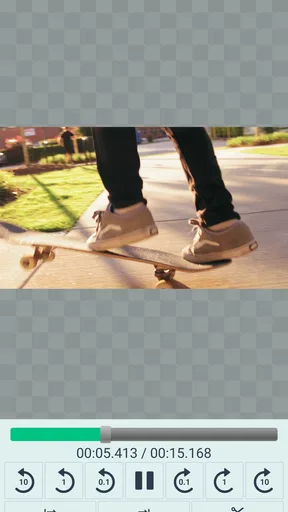
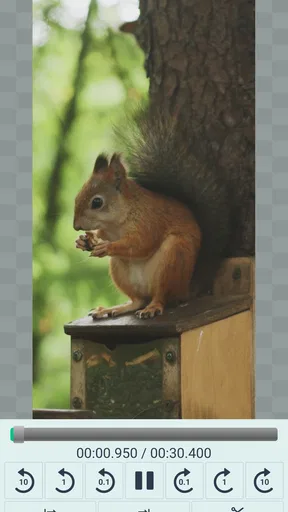
Once the video is open, the central task is setting the start and end points. I approach this in two passes. First, I make a rough selection that clearly contains the moment I need. Then I refine both boundaries by checking what happens immediately before and after the important action.
This two-pass method is more dependable than trying to find a perfect cut in one movement. At the beginning, I look for the first complete word, visible action, or stable frame that makes sense to a viewer. At the end, I leave enough room for the action or sentence to finish naturally. A technically short clip can still feel badly edited if it starts halfway through a word or stops before the reaction is complete.
For spoken material, I pay particular attention to the audio rather than judging only the picture. A person may appear ready to speak before the first sound arrives, so the visual beginning and audible beginning are not always identical. For a hand gesture or demonstration, the opposite can happen: the motion may begin just before the explanation. The right boundary depends on what the recipient needs to understand.
This is one of the app’s practical strengths: it encourages a single, clear decision instead of inviting me to keep decorating the clip. It is also a limitation. A simple start-and-end workflow is efficient for one continuous section, but it does not solve a story made from multiple moments. If I need to remove a pause in the middle while keeping everything around it, I would need a different kind of editor.
Making the cut useful for the person receiving it
I do not judge a trim only by whether the unwanted footage disappeared. I also ask whether the result makes sense when viewed independently. A clip sent to someone without the surrounding recording may need a little context at the start, even if that context felt unnecessary in the original file.
For example, if I am sharing a short cooking demonstration, I would keep enough of the opening to show what is being prepared. If I am sending a funny reaction, I would preserve the setup that makes the reaction understandable. If I am extracting a technical explanation, I would avoid cutting so tightly that the listener cannot identify the subject. These choices are not automated conveniences; they are the reviewer’s responsibility, and the app’s simplicity leaves that judgment with me.
Saving the trimmed outcome
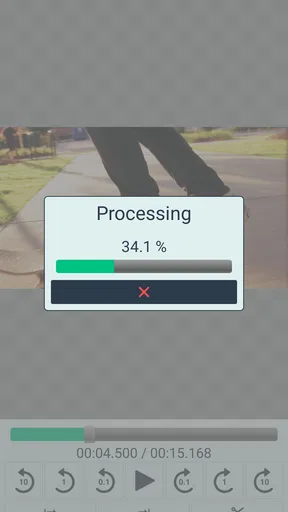
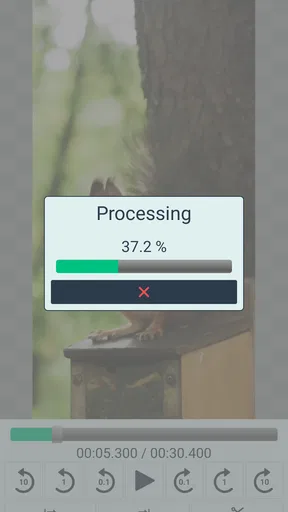
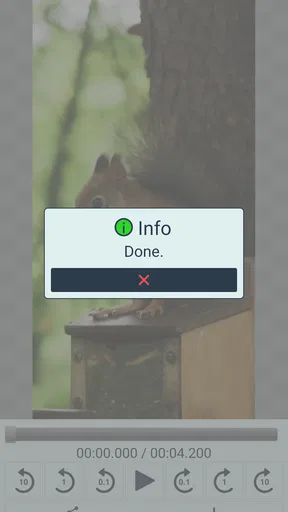
After the boundaries look right, I save the trimmed clip. This is the point where the app changes from a viewing tool into a practical file-preparation tool. I would give the result a moment to finish before switching away, especially with a longer source or a high-quality recording. A saved clip is more useful than a selection that exists only inside the current editing screen.
I also recommend checking the saved result before sending it. I would watch the first few seconds, jump to the final moments, and confirm that the key action or sentence survived. This quick review catches the most common mistake in trimming: choosing a boundary that seemed correct while scrubbing but feels abrupt in normal playback.
The outcome I want is not merely a shorter file. It is a clip that can stand on its own, with a beginning that feels intentional and an ending that does not look accidental. For a one-section extraction, that is exactly the kind of result this focused app is built to produce.
The handoff from editing to sharing
The final step is sharing the trimmed clip. This is useful when the original recording is too long to send comfortably or contains material that the recipient does not need to see. Instead of explaining where to start watching, I can send the relevant section itself.
That handoff works best when I name or identify the clip clearly outside the editing step, particularly if I am preparing several versions from related recordings. A short, descriptive filename or message can prevent confusion between the full source and the shortened copy. The app handles the cut, while I handle the context around the file.
There is a small but important trade-off in this workflow. A trimming app reduces editing decisions, but it does not replace file organization. If I regularly create clips for work, study, or family sharing, I still need a sensible way to recognize which version is the final one. The simpler the tool, the more responsibility remains with the user at the handoff stage.
How it compares with ordinary alternatives
On Android, many people will first use the editing option already attached to their gallery or video player. That route can be perfectly adequate for an occasional cut, and it has the advantage of being close to the original file. A general mobile editor, meanwhile, is better when trimming is only one part of a larger project.
Video Cutter Pro makes more sense when I want a dedicated, repeatable path: open the file, define the two boundaries, save, and share. Its paid price of $4.99 means I would not recommend it automatically to someone who trims a video once every few months and already has a satisfactory built-in tool. The value is clearer for someone who prefers a focused utility and does not want creative editing features getting in the way.
Compared with a full editor, the advantage is reduced friction. There are fewer decisions between the source and the finished clip. Compared with a basic gallery cutter, the appeal is having a tool whose entire purpose is this operation. The right choice depends less on technical ambition than on frequency and workflow: occasional users may stay with what is already installed, while regular one-section cutters may appreciate the dedicated approach.
Where the workflow breaks down
The biggest weakness is the boundary of the concept itself. A single continuous trim cannot replace a timeline editor. If I want to keep the opening and closing but remove a mistake from the middle, I would need another tool. The same is true for combining several recordings, adding captions, balancing sound, or changing the visual presentation.
Precision can also become the deciding factor. A quick cut is easy when the unwanted material is clearly separated from the useful material. It is harder when the important moment begins between words, when a subject moves quickly, or when the source contains several nearly identical takes. In those cases, I would spend more time checking the result, and a richer editor might offer better control.
Another point is that saving and sharing are separate responsibilities in my mind. The app can prepare the clip, but I still need to verify that the saved version is the one I intended to send. I would not skip that check for an important recording simply because the editing action was simple. A short preview is faster than explaining later that the wrong section was shared.
People who need advanced editing should therefore skip this app. It is not the right fit for a creator building polished social videos, a student assembling a presentation, or anyone who expects a complete production workspace. Its focused design is an advantage only when the requested outcome is also focused.
Who I would recommend it to
I would recommend it to Android users who regularly receive long recordings and need to extract one uninterrupted section. It suits someone preparing a quick clip for a family group, sending only the relevant portion of a meeting recording, or removing the unimportant beginning and ending from a camera file. The Everyone age rating also makes its basic purpose approachable for a broad audience, though the quality of the final cut still depends on careful selection.
I would be more cautious about recommending it to a casual user who already has a built-in cutter that works well. Paying $4.99 is easier to justify when the focused workflow saves repeated effort, not when the task happens once. I would also point advanced users toward a more capable editor if their real goal includes anything beyond one continuous segment.
My final take after following the complete workflow
Video Cutter Pro succeeds by staying close to a common, practical need. I can start with an oversized recording, isolate the part that matters, save a cleaner copy, and pass it to someone else without entering a complicated editing process. The app’s current version, 1.1.6, presents that focused identity clearly, and its modest install base suggests a specialized audience rather than a universal editing platform.
My recommendation is conditional but positive: choose it when speed and clarity matter more than creative control. The strongest workflow is the one I described—identify the correct source, make a rough selection, refine the boundaries while listening as well as watching, save the result, and preview it before sharing. That approach gets the most from a simple cutter and avoids treating it like an editor it was never meant to be.
For my own use, the deciding question would be simple: do I need one clean section from one video, or do I need to build something new from several pieces? If the answer is the first, Video Cutter Pro is a sensible, focused choice. If the answer is the second, I would spend the $4.99 on a broader editing option instead. Its honesty is also its strength: it keeps the path from input to outcome short, provided the job stays within those two boundaries.
Pros
- Cuts and trims videos quickly without requiring advanced editing skills.
- Supports common video formats for easier sharing and compatibility.
- Simple timeline controls make selecting the desired clip straightforward.
- Useful for creating shorter clips for social media or messaging apps.
- Processes basic edits locally
- which can be more convenient for privacy.
Cons
- Free features may be limited by ads
- watermarks
- or in-app purchase prompts.
- Export quality and resolution options may vary depending on the source video.
- Large or long videos can take noticeable time to process and save.
- Advanced tools like transitions
- filters
- and audio mixing may be missing.
- Some features may behave differently across Android and iOS devices.
FAQs for Video Cutter Pro
What is Video Cutter Pro used for?
Video Cutter Pro is designed for trimming and editing video clips directly on a mobile device. After importing a recording, you can select the exact start and end points, remove unwanted sections, and save a shorter version for sharing. It is especially useful for preparing videos for social networks, messaging apps, presentations, or personal storage without needing a full desktop editor.
Does Video Cutter Pro support all video formats and resolutions?
The application generally works with common mobile video formats, but compatibility can depend on the device, operating system, and the original file’s encoding. Standard MP4 recordings usually provide the smoothest experience. Very large files, unusual codecs, high-resolution footage, or videos stored in unsupported locations may take longer to load or may not import correctly, so checking the app’s current store description is recommended.
Will Video Cutter Pro reduce the quality of my video after trimming?
Trimming can preserve much of the original quality, but the final result depends on how the application processes and exports the file. Some videos may be re-encoded during saving, which can affect resolution, sharpness, frame rate, or file size. Before replacing your original recording, review the exported clip and keep a backup if the source video is important.
Is Video Cutter Pro free to use, or does it include purchases and advertisements?
The availability of free features, advertising, and optional paid tools may vary according to the version downloaded and the platform where it is installed. Basic trimming may be available without payment, while advanced export options or an ad-free experience could require an upgrade. Read the Google Play or App Store listing carefully before downloading, especially if recurring subscriptions are offered.
Where are edited videos saved, and can they be shared afterward?
After processing, Video Cutter Pro normally saves the trimmed clip to a device folder or the application’s media location, depending on your operating system and the permissions granted. You may need to allow access to photos, videos, or storage. Once saved, the result can usually be opened from the gallery or file manager and shared through messaging services, email, cloud storage, or social media.


